
Checkout using your account
Checkout as a new customer
Creating an account has many benefits:
- See order and shipping status
- Track order history
- Check out faster
Brand New Aqualisa Smart App
PUTTING YOU IN CONTROL
Revitalise your daily smart showering experience with the new Aqualisa App.
We’ve improved our app to make it even more intuitive and easy to use.



The new and improved Aqualisa App for your smart shower!
We’ve updated our app to make it even more intuitive and easy to use. Once connected to your smart shower via your home Wi-Fi, you’ll have access to a host of features including:
- Remote activation through your mobile phone so you can conveniently start and stop your shower from anywhere in the home
- Seamless connection to your Amazon Alexa or Google Home devices, enabling you to control your shower using your voice
- Create your own personalised routines with settings for temperature, water flow and shower duration – for the perfect shower every single day (dependent on shower model)
- Easy app installation and set-up, so you’re up and running in no time at all
- A secure experience – your app data is always safe with us
The Aqualisa App is compatible with iOS and Android devices.
Download the app from the Apple App Store or Google Play Store, just search for Aqualisa App and look for this icon or click on the links below.


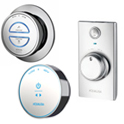
App Feature List: |
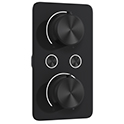 |
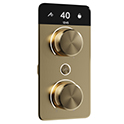 |
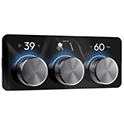 |
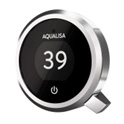 |
 |
|---|---|---|---|---|---|
| S1 | S2 | S3 | Quartz Touch, Elisa Intuition, Optic Q, |
Quartz Classic, Smart Link Elisa Incite, Unity Q Hugo, Quartz Blue, Smart Glo Visage, Zorin |
|
| Easy Setup | |||||
| Set Up Multiple Showers | |||||
| Add or Remove Showers | |||||
| On/Off Control | |||||
| Divert Between Outlets | |||||
| Timer 1-20 mins | |||||
| Temperature control/adjustment | |||||
| Create/Edit/Save/Set Routines | |||||
| Dynamic Routines | |||||
| Flow control | |||||
| Review Shower Usage Data | |||||
| Clean & Shower Lock | |||||
| Mood Lighting On/Off | 6 Colours | 12 Colours | Colour Wheel | ||
| Change Mood Lighting Brightness | |||||
| Proximity On/Off |
Using the Aqualisa Smart App with S Range:
Onboarding your Aqualisa S Range Smart Shower
Creating a Shower or Bathing Routine for a S Range Smart Shower
Configuring your Outlets for a S Range Smart Shower
How to Control your Shower
How to Add Profiles
Aqualisa Smart App FAQs:
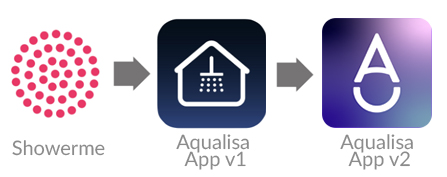
Q1) What is the App called?
A1) Our new Aqualisa App is simply called Aqualisa. The icon will look like this:
If you are using the old ShowerMe App, we recommend you download and use the new Aqualisa App instead. You can download the App from the Apple App Store (iOS) and Google Play store (Android).
Q2) I'm having issues pairing my iPhone to my shower, what should I do? (S1, S2 or S3 only)
- Turn off the power to the SmartValve
- Force close the Aqualisa App
- Open your iPhone's Bluetooth settings menu
- Press the blue i icon and "Forget this device"
- Turn on the power to the SmartValve
- S3 only - press any dial once, to progress beyond the wake up screen
- Open the Aqualisa App, and reattempt onboarding
Q3) I'm having issues pairing my iPhone to my shower, what should I do?
(Quartz Touch, Elisa Intuition, Optic Q, Quartz Classic, Smart Link, Elisa Incite, Unity Q, Hugo, Quartz Blue, Smart Glo, Visage, Zorin)
- Turn off the power to the SmartValve
- Force close the Aqualisa App
- Open your iPhone's settings menu
- Search for the Aqualisa app, within your iPhone's settings menu
- Ensure "Local Network" is turned on ("toggled green")
- Ensure "Mobile Data" is turned on ("toggled green")
- Turn on the power to the SmartValve
- Open the Aqualisa App, and reattempt onboarding
- Please ensure your Wi-Fi password is entered correctly
Q4) Why can’t I find the App?
A4) If you are unable to find the app, your phone or software may be too old to support it. Please check your phones software meets the requirement shown on the store.
Q5) Can I use the App with all Aqualisa showers?
A5) The App is designed for use with smart showers with a pink, green or black (from 2026) SmartValve™ only. If your SmartValve™ is orange, black (pre 2017) or grey, it is not compatible with the App.
Please call us on 01959 560010 if you would like to discuss upgrading your model.
Q6) Can I use my ShowerMe account details to log into the new Aqualisa App?
A6) No, as this is a new App you will be required to create a new account. Follow the step-by-step instructions in the app to create an account, set a password and verify your account.
When creating the account, you can still use the same details as you did for the ShowerMe App if they meet the criteria.
Q7) Can I still use the shower if my Wi-Fi is not working?
A7) You can start/stop your shower without Wi-Fi through the main shower controller in your bathroom, as it is hard wired. To use the App or Google/Alexa voice commands, Wi-Fi is required.
Q8) How do I connect my Aqualisa Smart shower to the App?
A8) You can download the app from the Apple App Store (iOS) and Google Play store (Android).
Follow the step-by-step instructions in the App to create an account, set a password and verify your account.
Switch off power to your SmartValve for at least 2 minutes, then switch back on.
Locate your Wi-Fi router and make a note of the network name and password.
Follow the on-screen instructions in the App to connect to your Wi-Fi and add your shower.
Q9) Why can't I use my phone number to validate my account?
A9) Please ensure that the number you are entering starts with a zero, not '+44'".
Q10) What can I do if I am having issues using or connecting my Aqualisa App?
A10) The new app shows clear step-by-step instructions as you go through the onboarding process.
If you require additional support with either connecting or using the App, please contact our Customer Service Team on 01959 560010.
Q11) What if I get an error code whilst using the App?
A11) Please report any errors with the App using the menu at the top right-hand side of the screen within the App. Select ‘Support’ and then ‘Report Error’.
If you prefer to speak to us about any issues, please call our Customer Service Team on 01959 560010.
Q12) Why is my shower showing as offline?
A12) This can occur if the shower has failed to successfully connect to the Wi-Fi network or has lost communication for some reason.
Check Wi-Fi is available. If so, switch off the power to the shower for 2 minutes, then switch it on again.
Wait for the controller lights to go off. Close the App and open it again.
If still showing as offline, please report the error through the Support section of the App menu on the top right-hand side of your App home screen.
Q13) I am unable to see my network in the App, but I can see it from my phone.
A13) The shower needs to be on a network that is 2.4GHz band.
Check that your network is enabled to use 2.4GHz. This band will normally provide you with better Wi-Fi coverage in your house.
If you are unsure which band your network is, please contact your network or router provider.
Q14) What happens if I change my router or Internet Service Provider?
A14) If you have changed your router or ISP, you will need to delete your shower through the App. Please note that any recorded usage data will be lost when you do this.
Click ‘+’ from your App home screen to add new shower and follow on screen instructions to onboard to your new network.
Q15) Why can’t I change the temperature or flow rate using the App?
A15) App features vary by shower model. The following models support temperature adjustment via the App: S2, S3, Quartz Touch, Elisa, Intuition, and Optic Q.
Q16) How do I create, amend or delete routines?
A16) From the shower operation page, tap the Routines icon. This is the icon in the bottom‑left corner of the screen, shown as three small squares connected by a line.
This opens the Routines page for that shower. To create a new routine, tap Add Routine and enter your settings, including:
- A routine name (for example, “6am Wake Up”)
- Temperature (model dependent)
- Flow rate (model dependent)
- Outlet (model dependent)
- Run time (1–20 minutes)
Once finished, confirm and save the routine.
To use a saved routine, select it from the list. This will load the routine onto the shower operation page, then simply press On in the app to start your shower.
Q17) Can I set a timer for my shower?
A17) Yes, you can set a shower timer between 1 and 20 minutes.
The timer is located at the bottom right of the shower operation page and is shown by a clock icon. Tap the clock icon to activate the timer, the timer slider will then highlight.
Drag the slider up or down on your screen to select your desired time (between 1-20 minutes).
When the timer reaches zero, the shower will automatically turn off.
Q18) I have an S1, S2 or S3. What features and customisation options are available, and how do they work?
A18) For information about our S range App features please view the comparison table above.
Q19) After I start my shower, it stops running after around 30 seconds and I have to press the on/off dial again. Why does this happen?
A19) This is expected behaviour if Prewarm is turned on for that shower within the Aqualisa App.
Q20) I have an S1, S2 or S3 shower. Why are some shower customisation options in the app settings greyed out or flickering?
A20) Unlike the core functionality of your shower, such as turning it on and off, changing temperature (S2 and S3 only), and adjusting flow (S2 and S3 only), which all work via Wi‑Fi, shower customisation menu items work via Bluetooth.
This means the device you’re using the Aqualisa app on must be within Bluetooth range of the shower controller (up to around 7 metres, with no walls or objects interfering with the signal). For best results, we recommend making these changes while standing as close to the main shower controller as possible.
Q21) I have an S3 shower. Why are Dynamic Routines not responding as expected in the app?
A21) Unlike the core functionality of your S3 shower, such as turning it on and off, changing temperature, and adjusting flow, which operates via Wi‑Fi, Dynamic Routines are controlled using Bluetooth only.
If Dynamic Routines are not responding as expected, please ensure your phone or tablet is within Bluetooth range of the shower controller. Standing close to the controller when creating or adjusting Dynamic Routines will help ensure a stable connection and reliable operation.
Q22) How do I know my shower is prewarmed and ready before I step in?
A22) When Prewarm is active and the water has reached your set temperature, the shower gives a clear visual indication depending on your controller:
-
S1: All lights remain on, but there is no water flow.
- S2: All lights remain on, and the screen slowly pulses between a pause icon and the current time.
- S3: All lights remain on, and the screen displays “Outlet PAUSED” above the central dial.
The new Aqualisa App is compatible with iOS and Android operating systems up to three years old.
Please find our full terms and conditions here and our privacy policy here.